Is there any pinball streamer who is in the Twitch 2K (2560x1440p60) beta?
I’m curious what the extra bitrate will do to us. It’s an awkward PC resolution standard to adapt to so I’m curious if anyone has jumped the gun.
Is there any pinball streamer who is in the Twitch 2K (2560x1440p60) beta?
I’m curious what the extra bitrate will do to us. It’s an awkward PC resolution standard to adapt to so I’m curious if anyone has jumped the gun.
I just wanted to declare a few findings on SPIKE3 that might interest us streamers.
The CN5 PinSound adapter that sells for SPIKE2 works for SPIKE3, the header has just moved around on the board.
The latency difference between CN5 and the audio send on the SPIKE3 HDMI output is less than 0.5ms. I measured with an HDMI audio extractor and CN5 into the same analog mixer sampling the HDMI in the left channel and analog CN5 in the right. The 0.5ms difference is of course not audible for a human ear.
For shits and giggles I captured the HDMI out on separate HDMI capture card from my main one and the latency was about 10 frames of difference, that’s 166.7ms in 60FPS. The lesson I want to teach here is that your game audio needs to be captured on the same interface as your microphone to avoid echoes, 166.7ms is very noticeable and disturbing to listen to, FYI. Fiddling with render delay in OBS to try compensate for this is something I wouldn’t wish upon my worst enemy.
Another discovery I made is that the LVDS connector is upside down on SPIKE3 relative to SPIKE2 and that the HOV pinball daughter board does not work.  Why would I care? As you can see on the Stern streams, and my stream if you’d like, the HDMI output is very dark and does not pop the same way as the display. It’s easily compensated for in OBS with a Color Correction filter or LUT, if you have the spare GPU cycles (I do not). I reported this to Stern as it would be easier for everyone if they had a different neutral color profile for the HDMI output and not one that is optimized for a backlit display. I kind think it’s in their interest that their games look good however they’re showcased.
I managed to set up a telestrator using a newer Samsung tablet. I used the Samsung Second Screen app to connect to my streaming computer (either wireless or via USB). Then, I used the OBS Draw plugin.
You essentially use the tablet as a secondary touchscreen monitor and enable the touch features through the Second Screen app. Fullscreen project your Draw window to the second screen tablet and viola! Works great!
Haven’t stress tested it yet, but I don’t foresee any issues using the USB feature during a tournament. Wireless is great when I’m at streaming home because I can mount it above my Touch Portal tablet allowing me to both telestrate and monitor the broadcast right at the game.
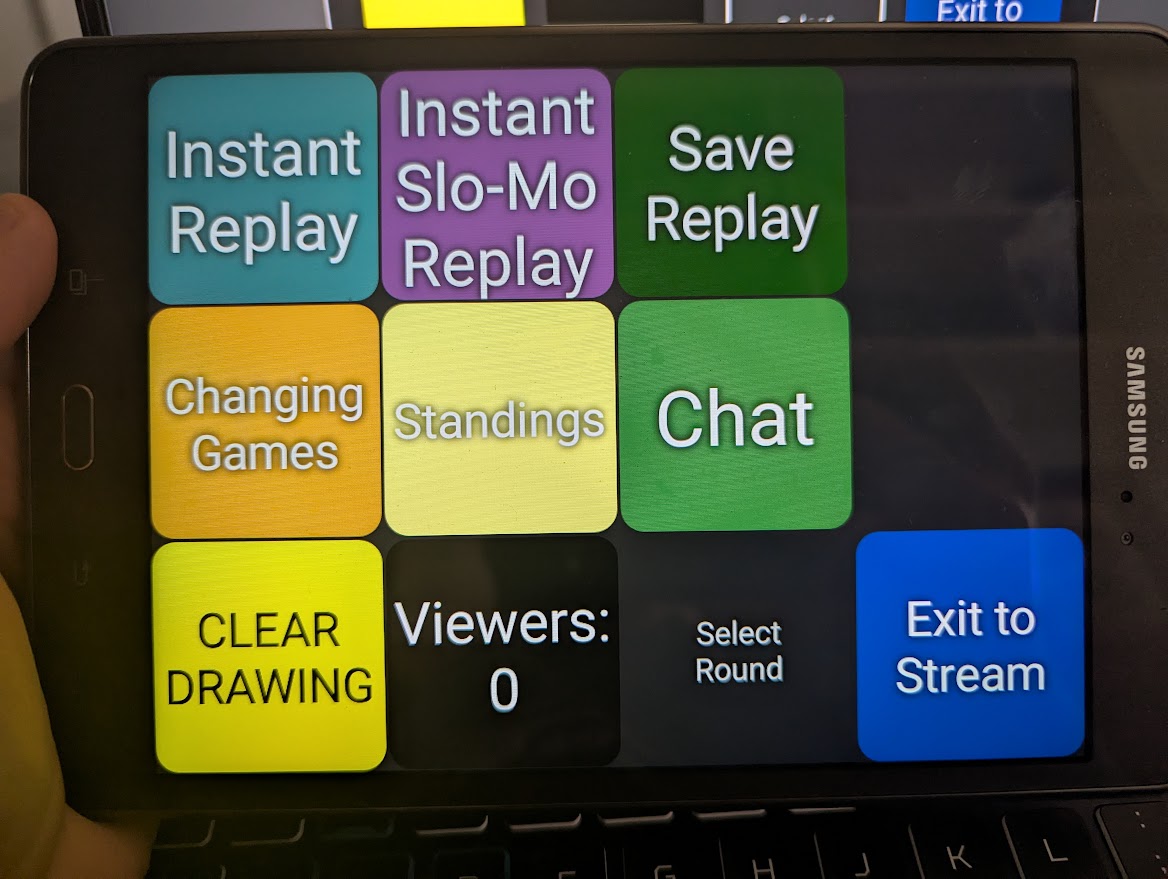
While we’re on the subject, here are my buttons for broadcast:
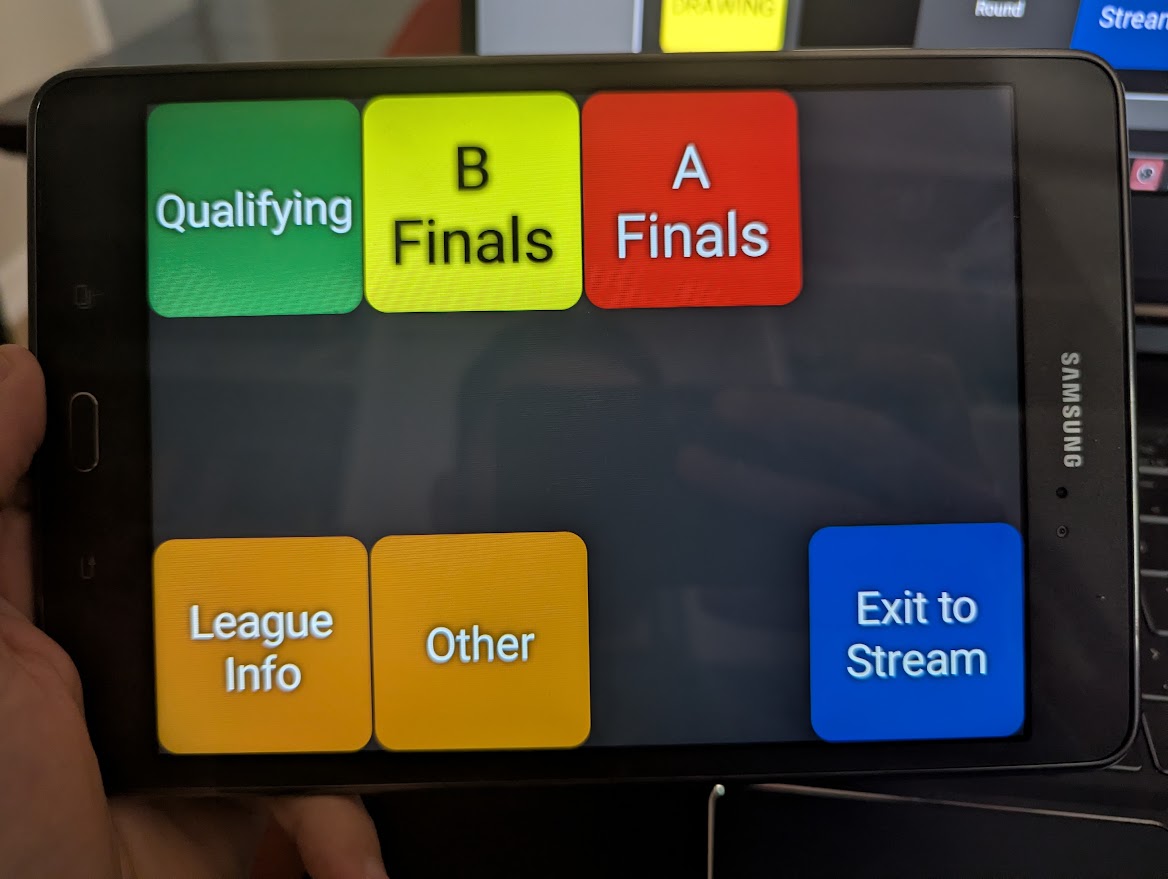
I have it set up to save me tons of production time on the fly. For example, the “Select Round” button brings you to this screen:
Clicking any round automatically changes all the info on the screen for that round.
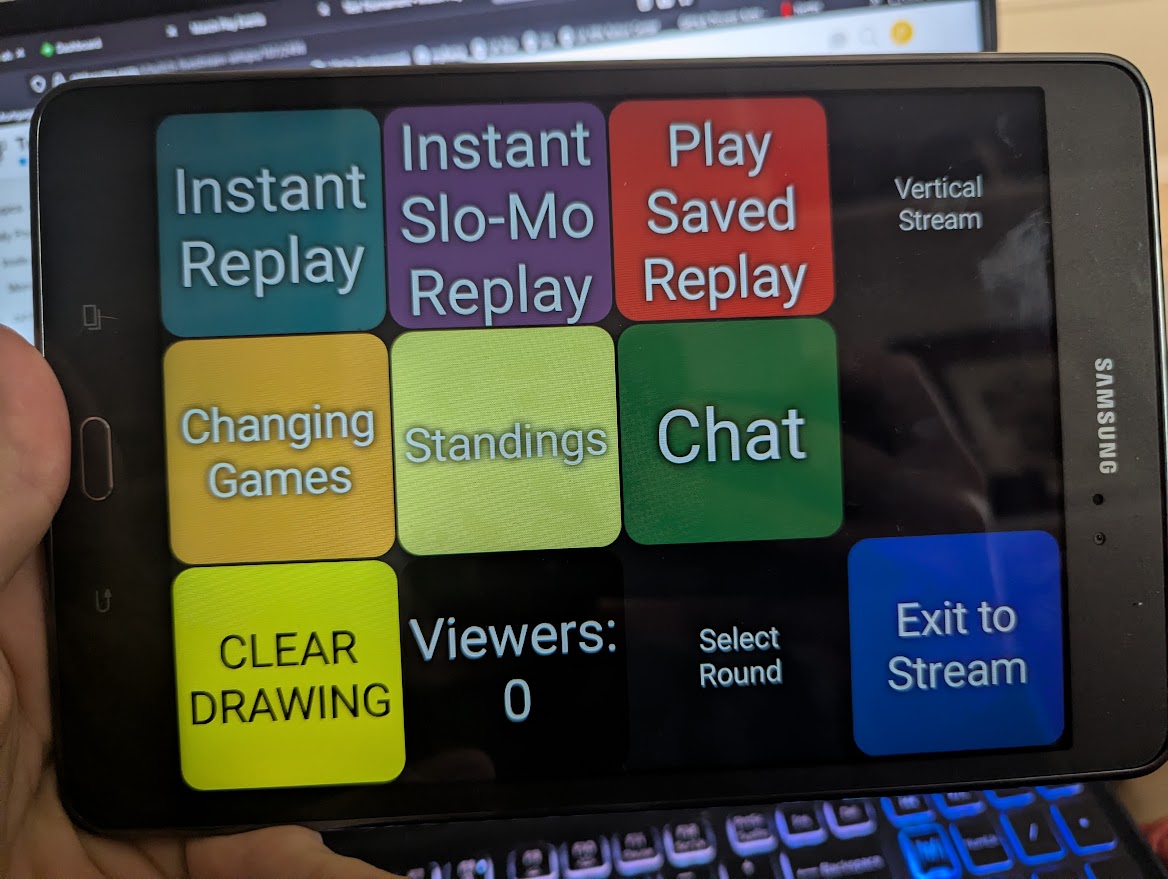
The buttons are also dynamic. This is what it looks like, for example, when you want to save a replay during the middle of a ball but you want to play it after the player drains:
The button changes to red and now says “Play Saved Replay” letting the broadcasters know the replay is there and the save was confirmed.
Any time there’s a replay on screen, all the replays buttons change to Blue and “Exit to Stream” so there’s never any confusion about how to get home. The “Standings” button changes to “Refresh Standings” when you’re on the page so you don’t have to wait a full minute for Match Play to auto-refresh. You can do it any time on the fly. There are tons more examples.
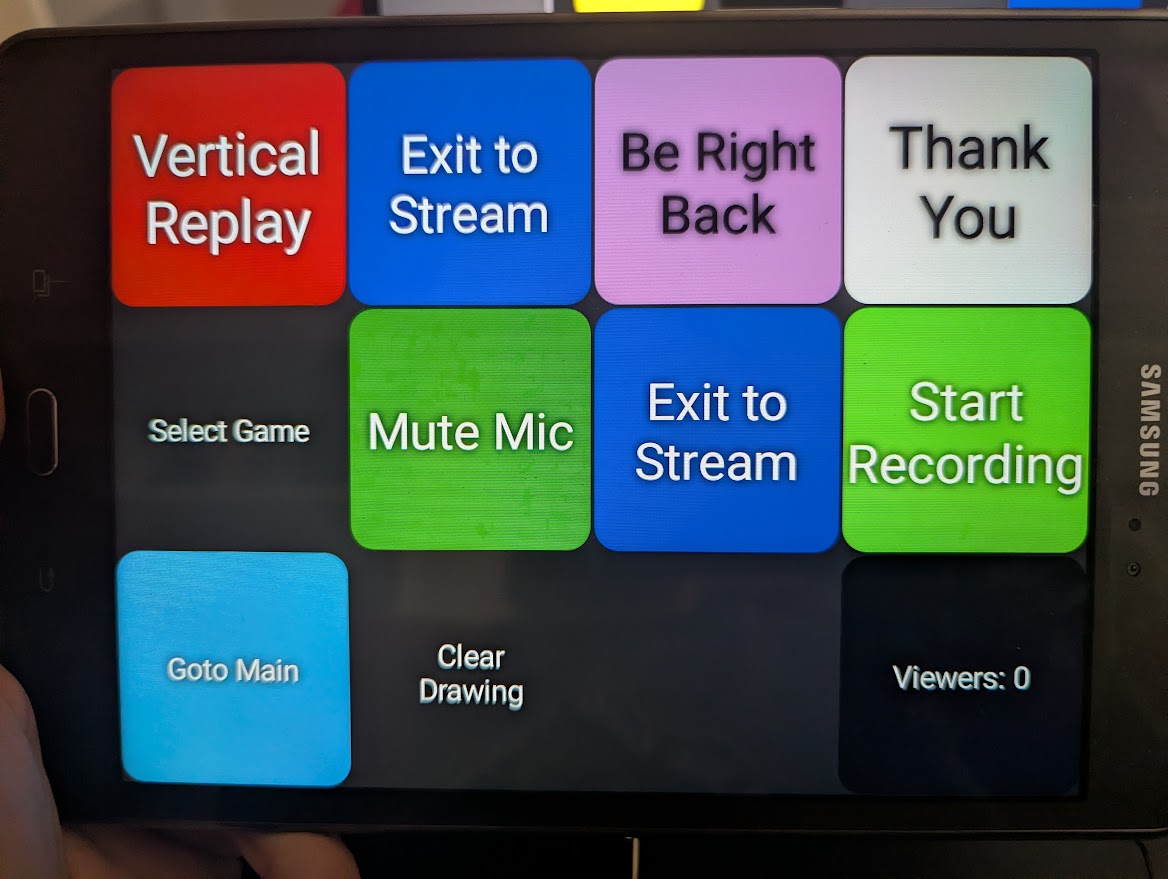
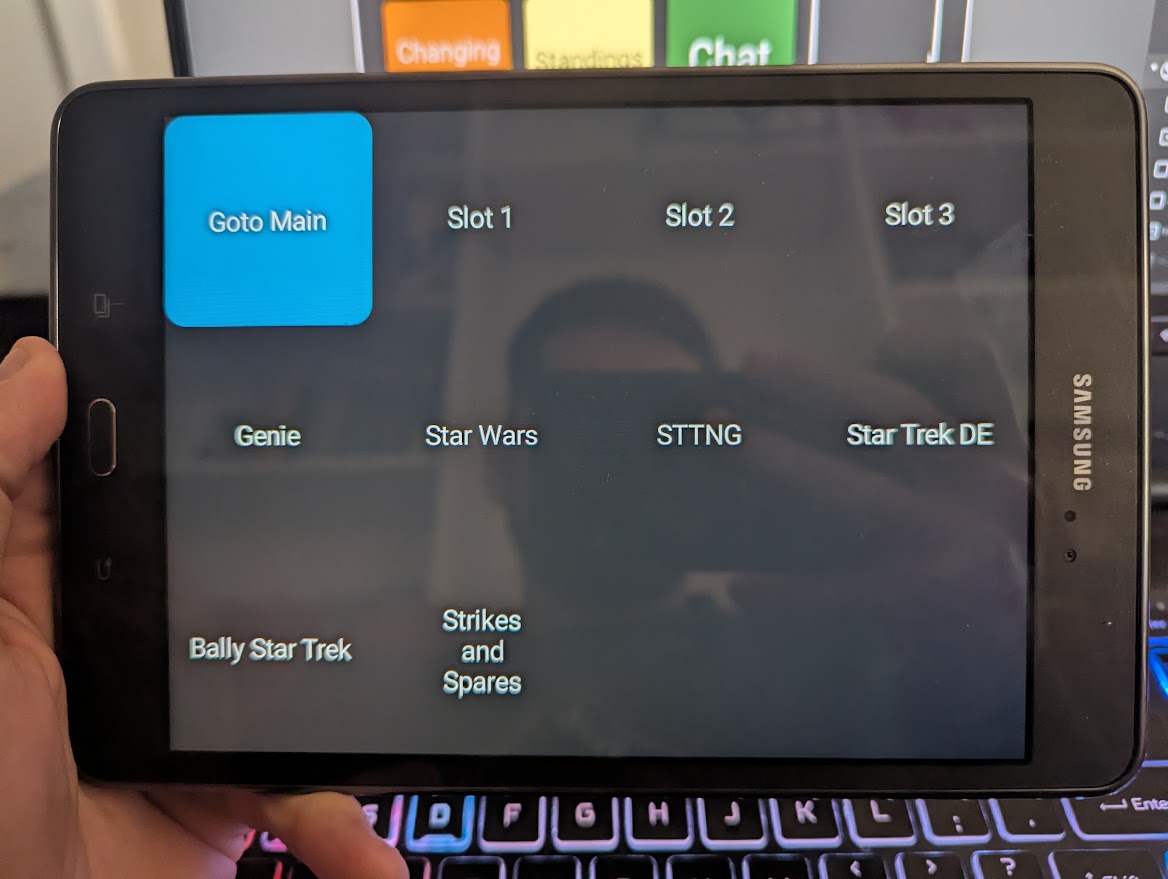
Here are the buttons I use for when I’m just streaming casually by myself:
All the game info for my house is pre-programmed and can be swapped at the click of a button.
Touch Portal is easily the most powerful tool in the arsenal if you take advantage of it.
Damn, it looks amazing! I’m dug in like an Alabama tick into Stream Deck (they have a mobile app too) but this seems far more broadly usable.
Before we (YpsiPinball) bought a full-sized touch-screen monitor, we cast to an android tablet for telestrating and it worked great.
And, yes, Touch Portal is the best. We have it on a <$100 android tablet and it’s far more flexible and powerful than any (more expensive) stream deck we’ve tried. Some of the things we do with it:
Time to make the switch. This can run on a potato. I’m running mine on a tablet I got from someone in league for free.
So many great ideas in here! I like the variable function. I usually just update each tourney number manually in OBS before I start the stream. I love the idea for multiple replays too. Also, for some reason, I never thought about having it on my phone.
We should start a community project DB with “Broadcast Rule Sheets” hosted somewhere we can upload them. Maybe Match Play would be willing to host them.
We have almost 200 of our Cheat Sheets on Ypsipinball.com, all 1-page and curated by a top-150 player. You’re more than welcome to download them and use them on your stream.
This is great - thank you!
Hoping for some help here please.
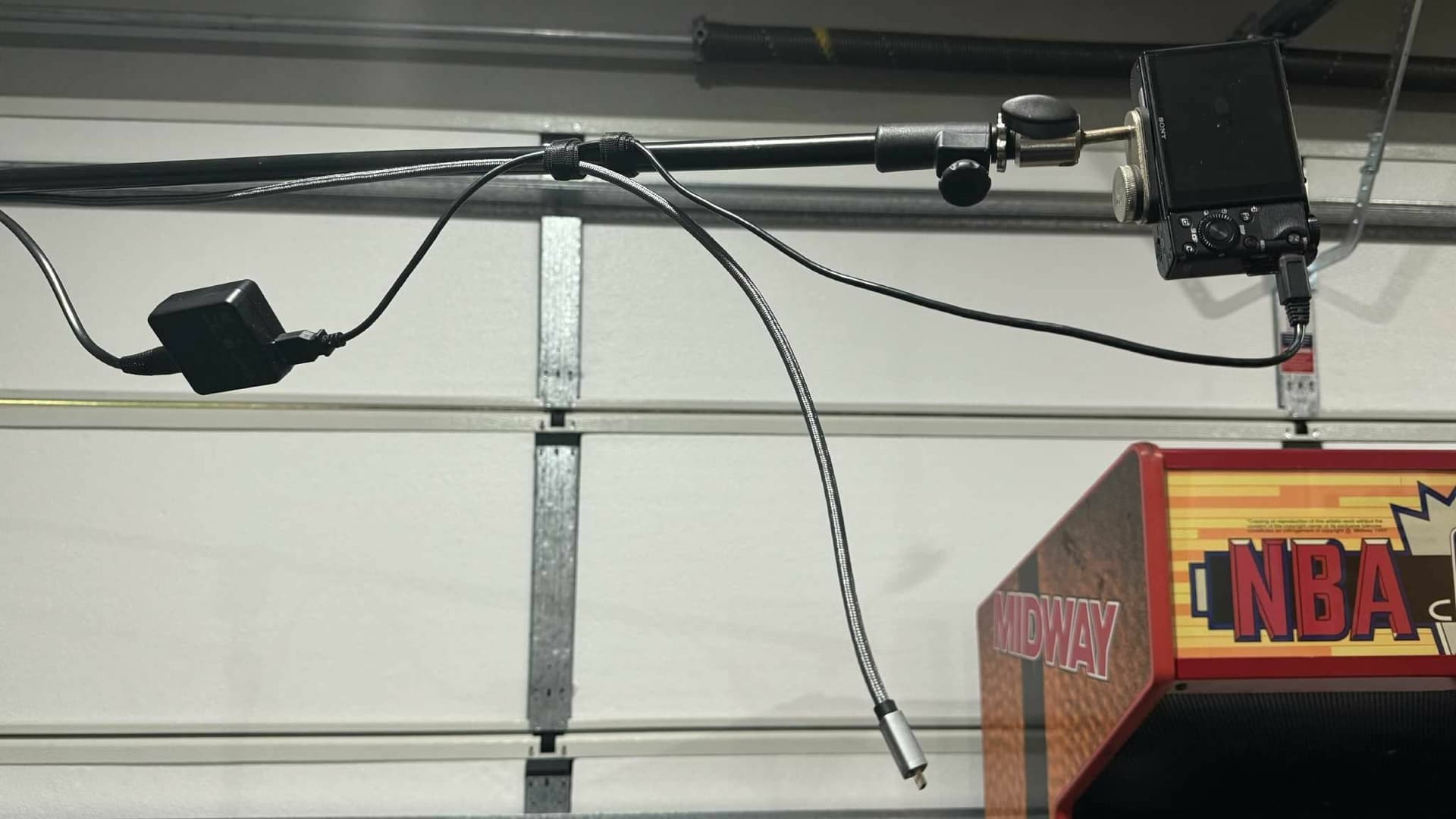
I recently changed over from a webcam to my Sony DSC RX100M4 for the playfield view. It seems to give better resolution.
I thought that by running a power supply to it, it would help keep the camera alive and not run out of juice…well…that didn’t end up being true.
I think I now need a battery bypass to make this happen but am unsure if with this, do I still need to have power to the unit.
Can anyone help please.
There’s not a lot of cameras that can run while charging the camera’s internal battery. It will die eventually. You need something called a dummy battery that essentially works like a eternal battery, it also removes the battery as a heat source which can cause issues for prolonged use. Amazon.com
Thanks for the reply. Grabbed one and tried it out yesterday.
A little stuffing around getting my rig working again…but streamed for 2hrs and no problem. Fingers crossed for tomorrows stream all goes well.
Ok, I just caught the Pinball Jones guys on stream and asked them about their setup. They’re running Hollyland Cosmo C1 transmitters THROUGH WALLS and are getting absolutely stellar, stable results. For $550, I’ll be looking to upgrade very soon. I’ll probably sell one of my Accsoon sets and upgrade to the C1 for just the playfield.
They did mention the only caveat is they put out a rather strong signal that will cause interference with other devices, but they’re running 3 of them. They said they’re looking to move to a single transmitter with a multiviewer soon.
Haha, I took out an entire arcade’s wireless payment system with 3 Accsoon’s, but it was the very old models. 
Hollyland C1 ordered. I’ll report back with some sample video when I receive it.
FYI, the C2 can do 2 transmitters to a single receiver, but it’s also a $1,400 setup for just two cams. As the tech progresses, we’ll likely end up with one unit that can do it all with one receiver. That’s the natural evolution.
This is what the multiviewer is for. You transmit a 3840x2160p60 canvas with 4 x 1080p60 inputs in a 2 x 2 layout. This will however require a higher bitrate than 12Mbit/s that is offered on the monitor transmitters like the Accsoon’s or Hollylands (hence I use NDI for now).
The YoloBox Ultra and Magewell Directors are good compromises as well but I fear the WiFi isn’t as powerful as we need them to be and the canvases will be 1080p60 but it’s possible to compose your 3 cameras on the device and not have to scale the composition once you’re in OBS.
The TeraDek Ranger does offer broadcast quality and claim “uncompressed” 4Kp60 video. That’d be around 12Gbit/s for those keeping tabs. The Ranger will cost you as much as a decent game, which is starting to be close to how much I’ve spent on “wireless transmission” up to this point any way, but I digress.
Edit: Additionally, the Crystal Video BeamLink-Quad Plus can do up to 4 x transmitters with one receiver, but we’re NIB Stern Pro shipped at that point. Again, broadcast grade, not meant for monitoring.
Looking forward to your findings. Maybe a C1 plus two accusoons would be a good setup?
This is exactly what I’m going to try. Hopefully it’ll be here tomorrow afternoon.
I’m perfectly okay with frame skips on the player and display cams.
My only concern is that the C1 overpowers the signal of the Accsoons and causes more issues than are acceptable. We’ll see.
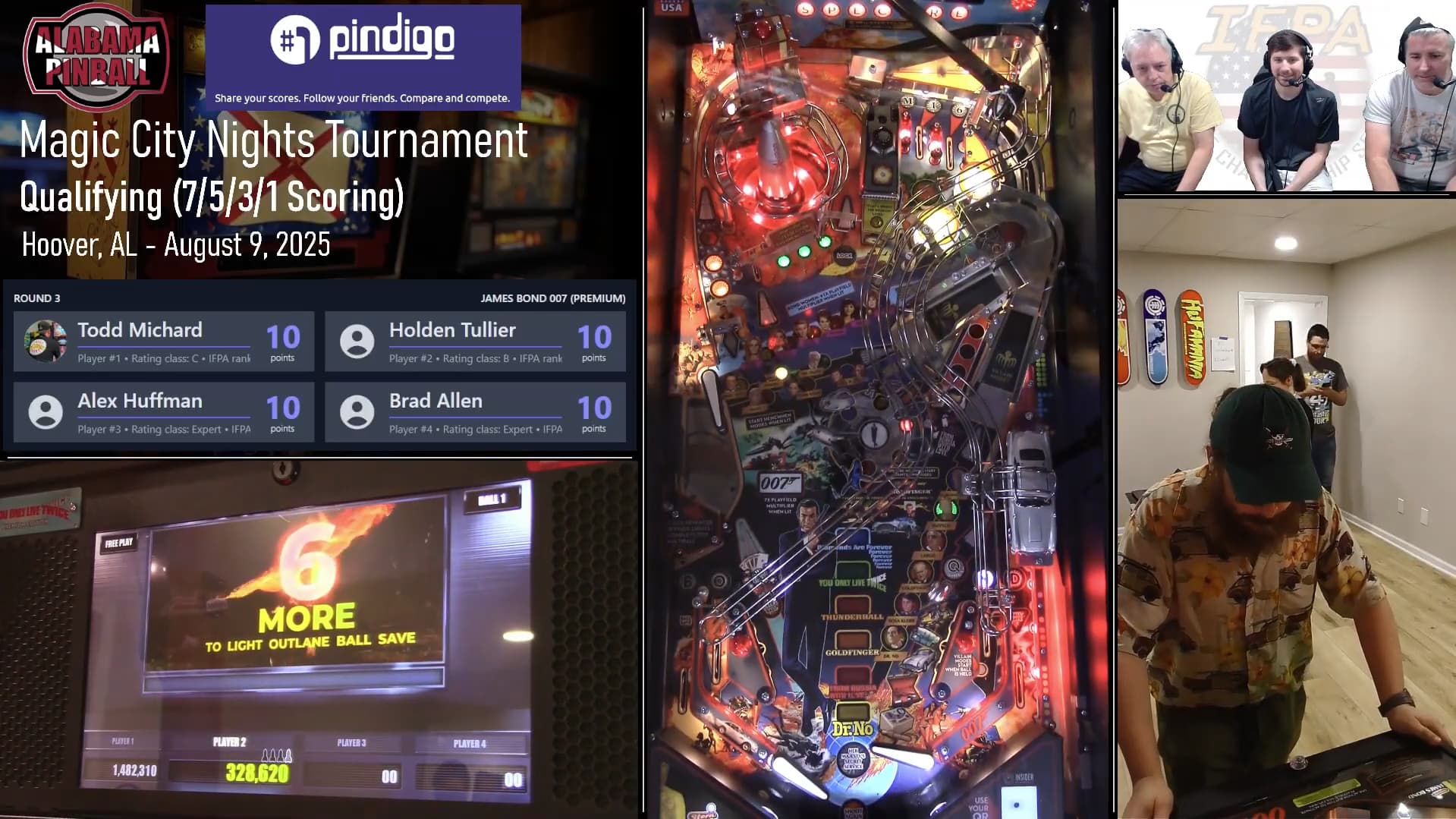
Let’s talk for a moment about main competitive play/tournament layout. I’ll explain my reasoning behind why I think this is the optimal way to arrange the cameras on the screen.
The first thing you’ll notice is there is very little or almost no space separating each camera, thereby maximizing the total amount of space available for to the viewer. You may not realize it, but putting a border around each box can take away sometimes 10% of the total viewing size. Multiply that by 4 cameras and you’ve taken away a lot of screen space. Many streamers who I like and watch regularly have massive borders that reduce the size of (most specifically) the playfield. This is an issue if you’re watching on a TV across the room. I’ve found it best to just fit everything as tightly as possible. The one drawback from this is that it cuts down on the area available for theming, but are they watching your content for the pinball or for the graphics in the background?
The second thing you’ll notice is the playfield is positioned in the middle of the screen. This signals to the viewer where the important action is. Although watchable, I do find it annoying to have to divert my head to one side or the other when the playfield is on the edge of the screen. The most important element should be in the middle and the “other information” to the edges of the screen.
The third thing you’ll notice is more real estate is given to the display rather than the player. If the audience can’t see the scores, it doesn’t really matter what the player is doing. You can also see the angle of the camera is situated where looking at the left side of the screen is as if you’ve turned your head to the left. I also chose to put the display in the lower portion of the screen because it is closest to the flippers where the majority of the action happens. It’s easier for the viewer to have a quick glance at an area closer to the flippers than farther away like the top left. Again, the most important information should be as close to the action as possible. Even when playing pinball, it can be difficult to find time to tilt your head upwards to glance at the display. We should make this as easy as possible for the viewer.
The player cam is situated in the lower right for this same reason - closer to the flippers. In terms of priority, it’s third behind the playfield and the display. It’s also situated where looking to the right of the screen is like viewing the player from that angle. I see many streams that get this backwards and it’s always a little awkward.
The fourth priority is the Match Play box. Viewers will be checking this regularly for score updates and player info, so it is given as much area as possible.
Having the commentary booth on the screen isn’t necessary, but the commentators like it. Putting the camera smaller and in the top right keeps it from distracting from the playfield action but gives enough real estate to show commentator reactions or hand gestures when something exciting happens. I’ve seen many streams without the booth on the screen, but I really do think it helps bring you closer to the audience when they can put a name to a face.
Finally, the tournament information and logos are relegated to the top left corner. This is because they are only briefly important for setting the stage when the viewer checks in. This is also the area where you can do your theming. I tried to keep mine very subtle and dark because I want it to be present but not distracting.
I’d be interested to get everyone’s feedback on this - you ain’t gonna hurt my feelings if you have a different opinion or like your setup better for your own reasons. I just thought I’d share my reasoning and open the floor for discussion on the topic.
100% agree. I think most of the big streams are using this layout now, but definitely needs to be adopted everywhere. I never crop playfield or score cams. Only the player.